To scrape data from a website, you let a tool or a script read the page and write the values you care about into a table. There are five common ways to do it: copy and paste, a spreadsheet formula, a browser extension, a Python script, or a scraping API. They go from no code at all to fully automatic.
I used one task for all of them: get the title, price and rating of the books on a practice site, and put them in a table. Every code sample below was run, and the output shown is real. For the full Python workflow, see Web Scraping with Python.
What Does It Mean to Scrape Data From a Website?
A web page is a text file in a language called HTML. The browser turns that text into the page you see. Scraping means reading the text (or the finished page) and keeping only the fields you need, such as names, prices or links. If the difference between scraping and crawling is unclear, this post explains it. A short definition is also in the glossary.
Open books.toscrape.com. It is a site built for scraping practice. Each book has a title, a price and a star rating. Those three fields are the target.
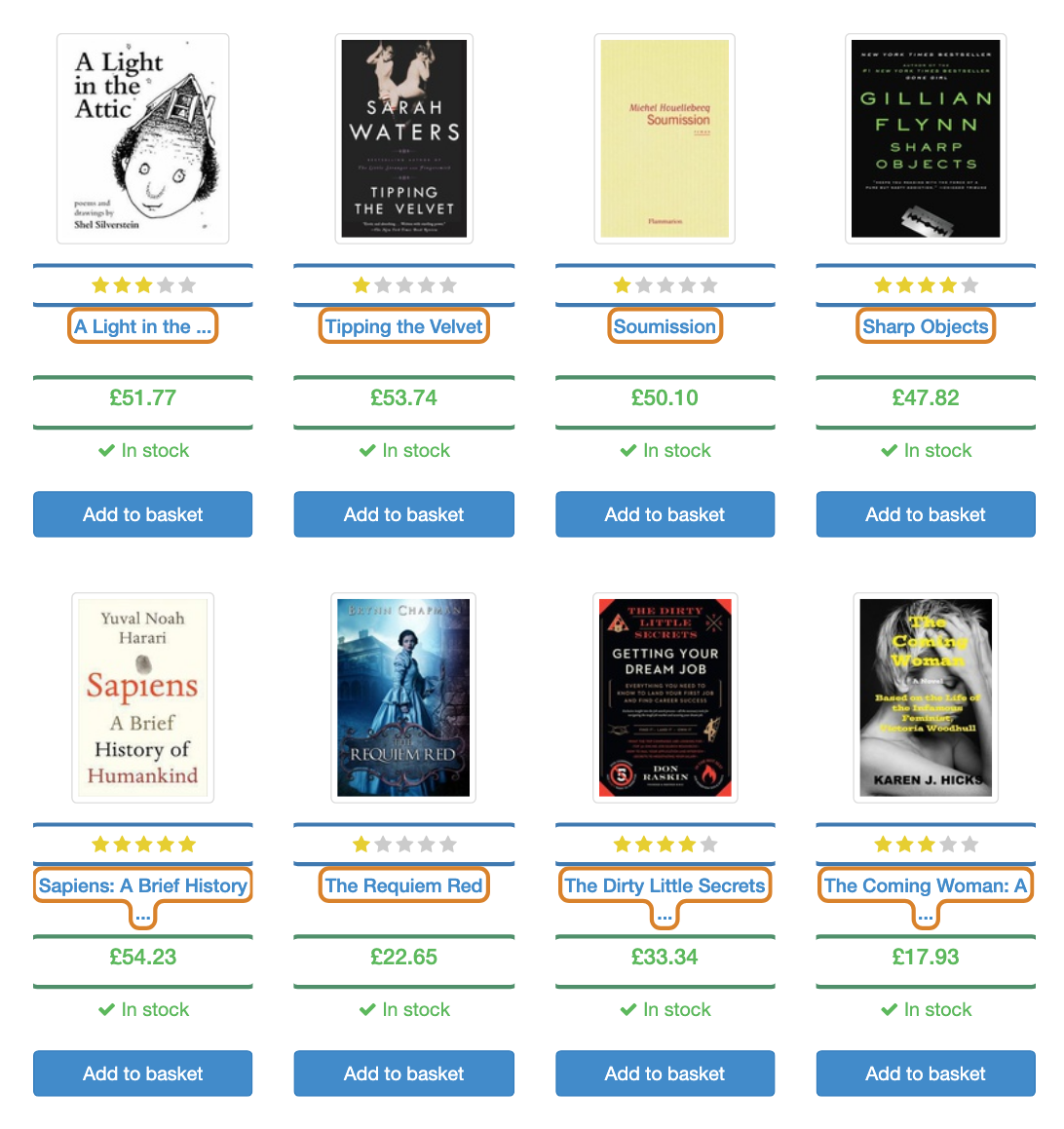
The outlines were added with CSS for this screenshot. They show what a scraper has to find on the page.
Before picking a method, do one test. Right-click the page, choose View Page Source, and search for a book title. If the title is there, the data is in the HTML, and every method below will work. If it is missing, the page adds the data with JavaScript after loading. That case is covered further down.
Before You Scrape
Three quick rules:
- Check the site's robots.txt and terms of use.
- Do not collect personal data without a reason and a legal basis.
- Go slowly. One request per second is a polite start.
The legal side is bigger than three bullets, so read Is Web Scraping Legal? before scraping anything you will publish or sell.
Which Method Should You Use?
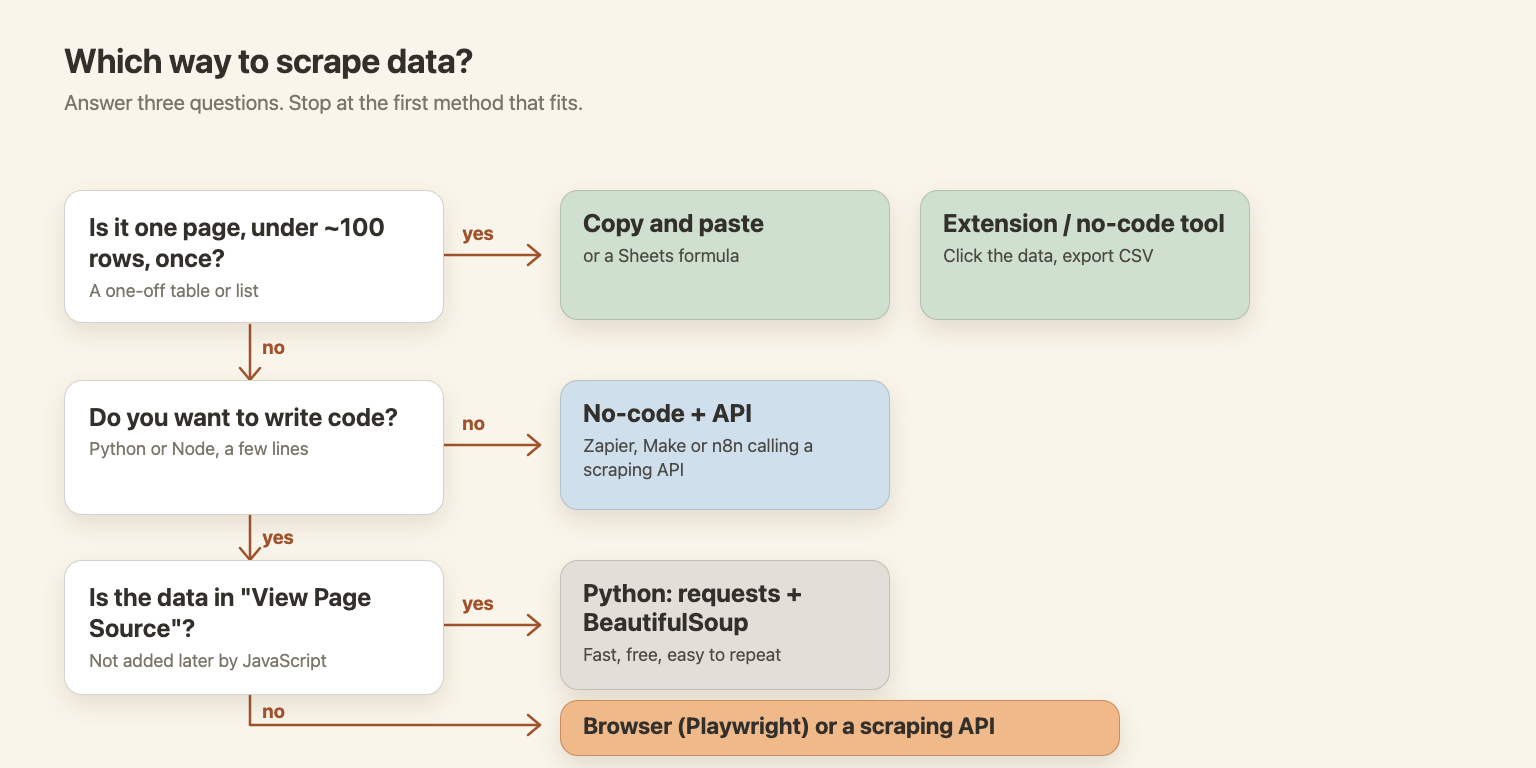
In short: start with the simplest method that fits, and move down only when it breaks.
| Method | Skill needed | Good for | Where it breaks |
|---|---|---|---|
| Copy and paste | None | One small table, once | Many pages, repeat runs |
| Spreadsheet formula | Basic spreadsheet | A table or list on one page | Pages built with JavaScript |
| Extension or no-code tool | None | Lists with pagination, one-off exports | Scheduling, scale, your own computer must stay on |
| Python script | Basic coding | Repeatable jobs on many static pages | JavaScript pages, blocking |
| Scraping API | A few lines of code, or a no-code tool | JavaScript pages, many pages, no browser to run | It costs money per page |
Way 1: Copy and Paste
For 20 rows, this is the right answer. Select the table or list, copy it, paste it into a spreadsheet. It takes one minute, and no code can match that.
It stops working when the data spans many pages, when you need it again next week, or when the page does not select cleanly.
There is a middle step if you can read a little code: the browser console. Press F12, open the Console tab on the book page, and paste this:
const rows = [...document.querySelectorAll("article.product_pod")].map((card) => ({
  title: card.querySelector("h3 a").title,
  price: card.querySelector(".price_color").textContent,
  rating: card.querySelector(".star-rating").classList[1],
}));
console.table(rows);
The browser prints a table with one row per book. I ran the same code in a Chromium page, and it returned 20 rows. The first three:
{"title": "A Light in the Attic", "price": "£51.77", "rating": "Three"}
{"title": "Tipping the Velvet", "price": "£53.74", "rating": "One"}
{"title": "Soumission", "price": "£50.10", "rating": "One"}
One detail matters here. The visible link text on the page is cut off ("A Light in the ..."). The full title lives in the link's title attribute, so that is what the code reads. Always check what the page shows against what the HTML contains.
Way 2: Scrape Data From a Website to Excel or Google Sheets
Google Sheets can fetch a page by itself. The function is IMPORTXML(url, xpath_query), and its syntax is described in Google's help page. The second argument is an XPath query: a short path that tells the sheet which elements to take.
Type this in cell A1:
=IMPORTXML("https://books.toscrape.com/", "//article[@class='product_pod']/h3/a/@title")
And this in B1:
=IMPORTXML("https://books.toscrape.com/", "//article[@class='product_pod']//p[@class='price_color']")
The sheet fills a column with titles and another with prices. I checked both XPath queries on the live page with a Python XML library: 20 titles and 20 prices came back. I did not run the formulas in Google Sheets itself for this post.
Excel has a similar tool, Data > From Web (Power Query), which loads a table from a URL. I did not test it here either.
The limit is the same for both: they read the HTML the server sends. If a page builds its data with JavaScript, the formula returns nothing. The test later in this post shows what that looks like.
Way 3: Browser Extensions and No-Code Tools
Extensions work inside your browser. You open the page, click the data you want, and export a CSV or Excel file.
Examples:
- Instant Data Scraper is a free Chrome extension. Its store page says it guesses which data on a page is the important part, supports pagination and infinite scroll, and exports to Excel or CSV.
- Web Scraper is an extension with a point-and-click selector builder. It also has a paid cloud version with a 7-day free trial, according to its site.
- ParseHub has a free plan, according to its pricing page.
I did not test these three for this post. I only checked what the vendors say about themselves.
Because an extension runs inside your own browser, it sees the page after JavaScript has run. That makes it more capable than a spreadsheet formula. The limits are different: your computer has to stay on, there is no real scheduling, big jobs are slow, and a site can block your own IP. For a one-off export of a list, it is often the fastest no-code option.
Way 4: Scrape Data From a Website With Python
Python is the usual next step when the job repeats or the data is big. You need two libraries:
pip install requests beautifulsoup4
requests downloads the page. BeautifulSoup lets you search the HTML with CSS selectors (the same ones used in the console snippet).
import csv

import requests
from bs4 import BeautifulSoup

URL = "https://books.toscrape.com/"

response = requests.get(URL, timeout=30)
response.raise_for_status()
# .content (bytes) lets BeautifulSoup detect UTF-8; .text can guess wrong and give "£"
soup = BeautifulSoup(response.content, "html.parser")

books = []
for card in soup.select("article.product_pod"):
    books.append({
        "title": card.select_one("h3 a")["title"],
        "price": card.select_one(".price_color").text,
        "rating": card.select_one(".star-rating")["class"][1],
    })

with open("books.csv", "w", newline="", encoding="utf-8") as f:
    writer = csv.DictWriter(f, fieldnames=["title", "price", "rating"])
    writer.writeheader()
    writer.writerows(books)

print(f"saved {len(books)} books to books.csv")
print(books[0])
The comment in the code hides a real beginner bug. My first version used response.text, and the price came out as £51.77. The requests library guessed the encoding from the headers as ISO-8859-1, but the page is UTF-8. Passing response.content fixed it. Here are both runs:
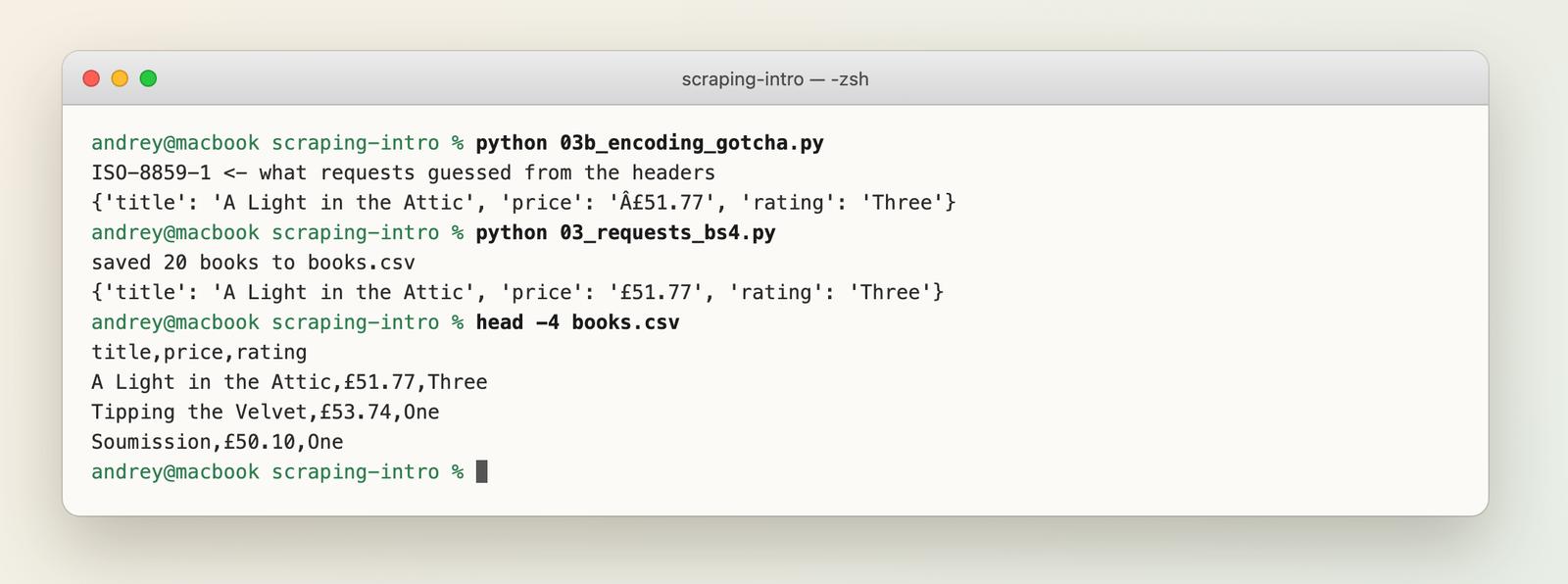
If your output is full of strange characters, check the encoding first.
Scraping all pages
The site has 50 pages with 20 books each. The loop is short:
import csv
import time

import requests
from bs4 import BeautifulSoup

books = []
for page in range(1, 51):
    url = f"https://books.toscrape.com/catalogue/page-{page}.html"
    response = requests.get(url, timeout=30)
    response.raise_for_status()
    soup = BeautifulSoup(response.content, "html.parser")
    for card in soup.select("article.product_pod"):
        books.append({
            "title": card.select_one("h3 a")["title"],
            "price": card.select_one(".price_color").text,
        })
    time.sleep(0.5)  # be polite: no hammering

with open("all_books.csv", "w", newline="", encoding="utf-8") as f:
    writer = csv.DictWriter(f, fieldnames=["title", "price"])
    writer.writeheader()
    writer.writerows(books)

print(f"{len(books)} books from 50 pages")
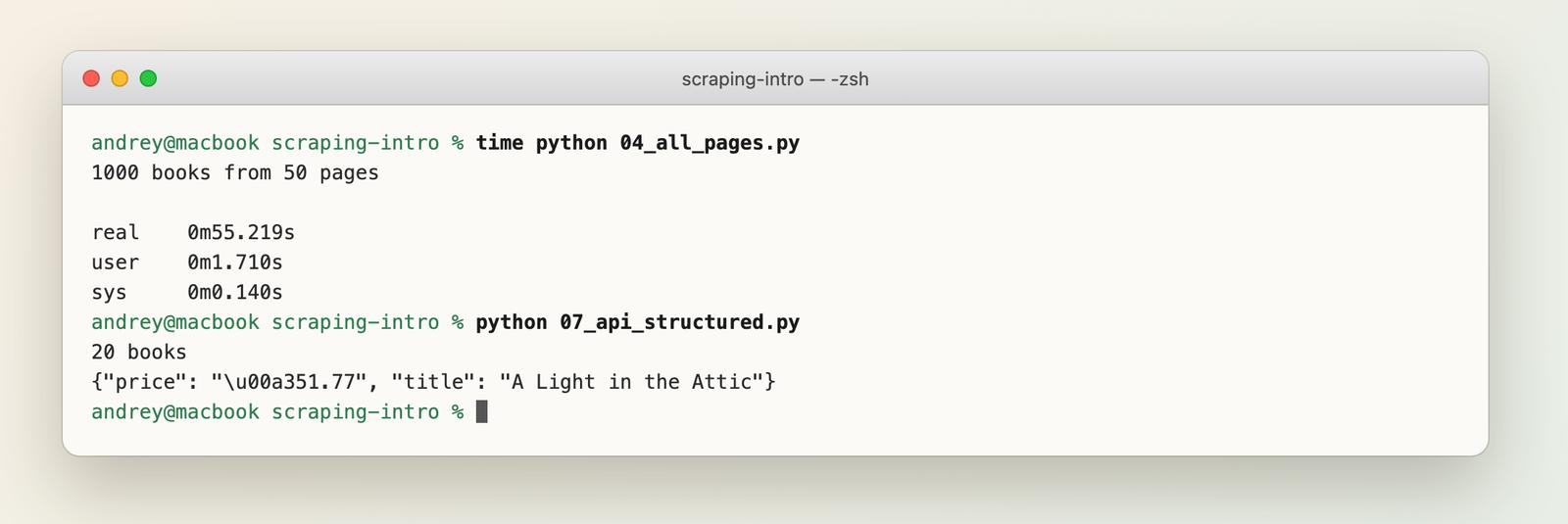
It collected 1,000 books in about 55 seconds on my connection, with a half-second pause between requests. The pause is the reason it is not faster, and it is the right trade. More on pagination patterns is in the glossary.
For next steps, Best Python Web Scraping Libraries compares the tools, and Web Scraping with Python covers the whole workflow.
When the Page Is Built With JavaScript
Now the case that breaks most beginner scrapers. The practice site has a second version, quotes.toscrape.com/js, where the quotes are added by JavaScript after the page loads. A plain request gets the empty shell.
import requests
from bs4 import BeautifulSoup
from playwright.sync_api import sync_playwright

URL = "https://quotes.toscrape.com/js/"

# 1. Plain HTTP request: gets the HTML before JavaScript runs
soup = BeautifulSoup(requests.get(URL, timeout=30).text, "html.parser")
print("requests + BeautifulSoup:", len(soup.select(".quote")), "quotes")

# 2. A real browser: runs the JavaScript, then reads the page
with sync_playwright() as p:
    browser = p.chromium.launch()
    page = browser.new_page()
    page.goto(URL)
    page.wait_for_selector(".quote")
    print("Playwright:", page.locator(".quote").count(), "quotes")
    browser.close()
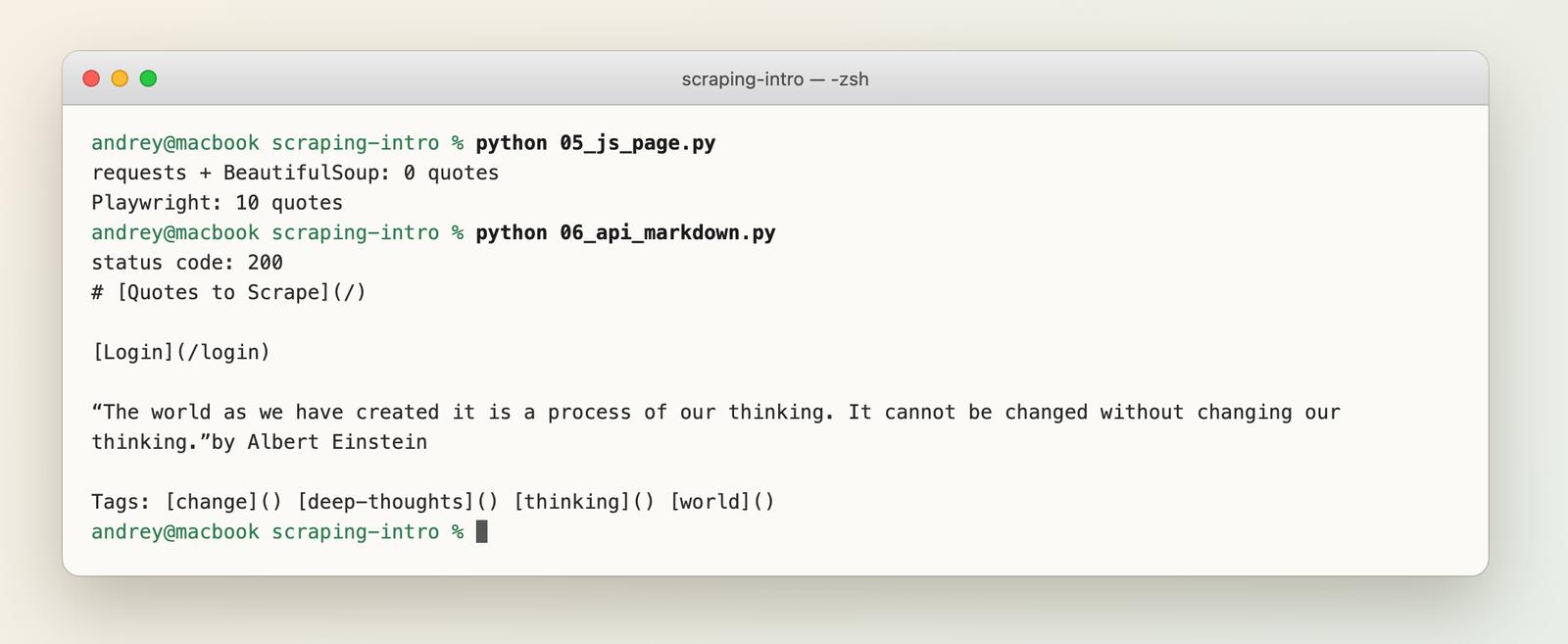
Result: 0 quotes with requests, 10 quotes with Playwright. The first script did nothing wrong. The data was just not in the HTML yet. A spreadsheet formula would see the same empty shell.
A headless browser fixes this, but it costs more: it is slower, it uses far more memory, and you have to install and update it. For a guide to the Node.js version, see Web Scraping with JavaScript and Node.js. For the theory, see JavaScript rendering in web crawling.
Way 5: Use a Scraping API
A scraping API does the page loading for you. You send a URL and get the content back, so there is no browser to install. WebCrawlerAPI is one such API, and this is the same JavaScript page from above:
import os

from webcrawlerapi import WebCrawlerAPI

client = WebCrawlerAPI(api_key=os.environ["WEBCRAWLER_API_KEY"])

result = client.scrape(
    url="https://quotes.toscrape.com/js/",
    output_formats=["markdown"],
)

print("status code:", result.page_status_code)
print(result.markdown[:300])
The quotes came back as Markdown, with no browser code on my side:
Markdown is good for reading and for feeding text to AI tools. If you want fields instead of text, the API can also return structured data. You describe the fields with a prompt and a JSON schema:
import json
import os

from webcrawlerapi import WebCrawlerAPI

client = WebCrawlerAPI(api_key=os.environ["WEBCRAWLER_API_KEY"])

result = client.scrape(
    url="https://books.toscrape.com/",
    prompt="Extract every book on the page",
    response_schema={
        "type": "object",
        "properties": {
            "books": {
                "type": "array",
                "items": {
                    "type": "object",
                    "properties": {
                        "title": {"type": "string"},
                        "price": {"type": "string"},
                    },
                    "required": ["title", "price"],
                    "additionalProperties": False,
                },
            }
        },
        "required": ["books"],
        "additionalProperties": False,
    },
)

books = result.structured_data["books"]
print(f"{len(books)} books")
print(json.dumps(books[0]))
It returned 20 books, and the first one was A Light in the Attic at £51.77. No selectors were needed. The output below also shows the 50-page Python run from earlier:
The honest trade-offs:
- An API costs money per page. A request with a prompt is billed per page plus the tokens used. The pricing page has the numbers.
- Selectors are free and exact once written. A prompt is flexible, but it is a model reading the page, so check the output on a sample.
- It only helps with web pages. It does nothing for desktop apps or terminals (see What Is Screen Scraping?).
If you do not want to write code, WebCrawlerAPI also has Zapier, Make and n8n integrations. The scrape docs and the Python SDK docs cover the parameters. There is also a Python scraper page.
Common Problems
- Empty results. The data is added by JavaScript. Check View Page Source first. Use a browser or an API.
- Garbled characters like £. Wrong encoding. Use response.content, or set response.encoding = "utf-8".
- 403 or blocked requests. The site does not like your traffic. Slow down, and read how to avoid getting blocked.
- Selectors that stop working. A site changed its layout. Scrapers need maintenance, and this is the main hidden cost of writing your own.
- Messy values. Prices with currency signs, ratings as words ("Three"), extra spaces. See how to clean and validate scraped data.
Save and Use the Data
CSV opens in Excel and Sheets, and it is fine for flat tables. JSON is better when records have nested fields. The glossary compares the formats.
If the next step is an AI knowledge base, Markdown output is usually the easier format to start with, since it keeps headings and lists.
FAQ
How can I extract data from a website?
Pick the simplest tool that fits. Copy and paste works for one small table. A spreadsheet formula or a browser extension works for a list on one page or a few pages. Python or a scraping API works when the job repeats or the data is large. The method table shows where each one stops.
Can ChatGPT extract data from a website?
A chat assistant can read a page if it has a browsing or fetch tool, or if you paste the content in. OpenAI's help page on ChatGPT search says it can search the web and cite sources, and also warns that results and citations can be incomplete, outdated or incorrect. It is fine for a quick one-off question. For a long list or a job you repeat, a scraper or an API is more reliable, because the output does not depend on a chat session. Always spot-check the numbers.
How to scrape data from a website using Excel?
Use Data > From Web (Power Query) to load a table from a URL. It works best on pages with a real HTML table. See Way 2.
How to scrape data from a website in Google Sheets?
Use IMPORTXML or IMPORTHTML. For example, =IMPORTXML(url, xpath_query) with the XPath from Way 2. It reads the HTML the server sends, so it will not see data added by JavaScript.
How do scrapers work?
A scraper downloads a page, finds the elements that hold the data (with selectors), and saves the values as rows. Browser-based scrapers also run the page's JavaScript before reading it.
Is web scraping legal?
It depends on the data, the site's terms and your country. Public facts are treated differently from personal data or copyrighted text. The full answer is in Is Web Scraping Legal?.
How does AI scraping work?
Instead of fixed selectors, a language model reads the page content and returns the fields you describe. The structured example in Way 5 works like that.
What to Do Next
Pick by the size of the job:
- One small table: copy and paste, a Sheets formula, or an extension.
- A repeatable job on simple pages: the Python guide.
- JavaScript pages, many pages or no browser to maintain: try the WebCrawlerAPI scrape docs, or see the web scraping API page. To compare vendors, read best web scraping APIs or best web scraping tools.
Want fields extracted by an LLM instead of selectors? See AI web scraping.
If the simple method breaks, move one row down the table. Most jobs never need the last row.