Selenium web scraping means driving a real browser from Python, so it works when the data only appears after JavaScript runs. The loop is always the same: open the page, wait for the element, extract it, go to the next page, quit the driver. This post is about scraping, not test automation.
I built that loop in Python against two scraping sandboxes and ran every Selenium snippet. A 5-page scrape returned 100 books in 10.8 seconds, and the biggest lesson was not about waits. Reading 20 books field by field took about 540 ms, while one execute_script call returned the same data in about 2 ms.
Last updated: October 25, 2026. I run WebCrawlerAPI. Versions: Python 3.11.2, Selenium 4.51.0, Chrome and chromedriver 156.0.8078.47, macOS on a MacBook (M2 Max), headless Chrome only. I did not run Firefox, Selenium Grid, proxies or any site with bot protection.
When Selenium Web Scraping Makes Sense
Use Selenium when the page needs a browser: content drawn by JavaScript, a button to click, a form to fill. If the data is already in the HTML, a plain HTTP client is simpler and much lighter. Web scraping with Python covers that route, and best Python web scraping libraries compares the options.
I used two sandboxes built for scraping practice, books.toscrape.com and quotes.toscrape.com. I fetched both robots.txt files with webcr, and both returned 404, so there are no rules to follow. The scripts sleep 1 second between page loads and send an identifying user agent. Whether scraping a real site is allowed is a separate question, see is web scraping legal.
Install Python Selenium and Write the First Scraper
Web scraping with Selenium in Python needs one package. Inside a virtual environment:
pip install selenium
There is no driver to download. Selenium Manager has shipped with Selenium since 4.6 and finds or downloads the matching chromedriver when none is provided. Since 4.11 it can also download Chrome for Testing if no Chrome is installed (both facts are from the Selenium Manager docs, read on October 25, 2026). In my run it found the Chrome already on the machine, downloaded only chromedriver, and the versions matched. The docs say the browser and driver major versions must match, and Selenium Manager handles that.
Here is the first script. It opens a page headless and prints the title, the link count and the amount of text:
from selenium import webdriver
from selenium.webdriver.common.by import By

options = webdriver.ChromeOptions()
options.add_argument("--headless=new")
options.add_argument("--window-size=1280,900")
options.add_argument("--user-agent=selenium-tutorial/1.0 (+https://webcrawlerapi.com)")

driver = webdriver.Chrome(options=options)  # Selenium Manager finds or fetches the driver
try:
    driver.get("https://books.toscrape.com/")
    print("title:", driver.title)
    print("links:", len(driver.find_elements(By.CSS_SELECTOR, "a[href]")))
    print("text chars:", len(driver.find_element(By.TAG_NAME, "body").text))
finally:
    driver.quit()
Output: title All products | Books to Scrape - Sandbox, 94 links, 1,809 characters of text.
A few notes on that code:
- Headless. The Selenium docs show --headless=new, and it worked on Chrome 156. Chrome's own docs say headless and headful modes are now unified, and since Chrome 132 the old headless mode lives in a separate chrome-headless-shell binary. For the background, see what a headless browser is.
- Window size. In my first login run, without --window-size, a click failed with element click intercepted: ... is not clickable at point (48, 368). Adding the size fixed it. I did not dig into why, so I set it in every script.
- Locators. Use find_element(By.CSS_SELECTOR, ...). The old find_element_by_* helpers were removed in Selenium 4.3. CSS selectors are my default; XPath is for the cases CSS cannot express, such as selecting by text.
- Always quit(). After the final scraper run, pgrep chromedriver found no process (0, saved in outputs/). I did not test what happens when quit() is skipped, but it is one line, so I do not skip it.
The rest of the post builds one scraper in a single file. Start it with these imports and a driver helper (the first script above inlines the same options):
import csv
import json
import time

from selenium import webdriver
from selenium.common.exceptions import NoSuchElementException, TimeoutException
from selenium.webdriver.common.by import By
from selenium.webdriver.support import expected_conditions as EC
from selenium.webdriver.support.ui import WebDriverWait


def make_driver():
    options = webdriver.ChromeOptions()
    options.add_argument("--headless=new")
    options.add_argument("--window-size=1280,900")
    options.add_argument("--user-agent=selenium-tutorial/1.0 (+https://webcrawlerapi.com)")
    return webdriver.Chrome(options=options)
Next, the function that reads title, price, rating and stock from each book card:
RATINGS = {"One": 1, "Two": 2, "Three": 3, "Four": 4, "Five": 5}

def parse_book(article):
    price = article.find_element(By.CSS_SELECTOR, ".price_color").text  # a currency sign, then the number
    rating = article.find_element(By.CSS_SELECTOR, "p.star-rating").get_attribute("class")
    return {
        "title": article.find_element(By.CSS_SELECTOR, "h3 a").get_attribute("title"),
        "price": float(price[1:]),
        "rating": RATINGS[rating.split()[-1]],
        "in_stock": "In stock" in article.find_element(By.CSS_SELECTOR, ".availability").text,
    }
The first book came back as {'title': 'A Light in the Attic', 'price': 51.77, 'rating': 3, 'in_stock': True}.
Explicit Waits for Dynamic Pages
driver.get() returns when the page has loaded. That is not when the data exists. By default Selenium waits for readyState to be "complete", and the docs say plainly that JavaScript loaded after that can still change the page.
Try https://quotes.toscrape.com/js/. The quotes are drawn by JavaScript, so a read right after get() can race the script (I did not force that failure here). The fix is an explicit wait: poll until a condition is true, up to a timeout.
wait = WebDriverWait(driver, 10)
cards = wait.until(EC.presence_of_all_elements_located((By.CSS_SELECTOR, "div.quote")))
Three ways to wait, in short:
| Wait | What it does | My take |
|---|---|---|
| time.sleep(n) | Always waits n seconds | Too short and it fails, too long and it wastes time |
| Implicit (driver.implicitly_wait) | Global timeout for every find_element | Fine for simple pages, but it failed every run in that test. The docs say not to mix it with explicit waits |
| Explicit (WebDriverWait) | Waits for one named condition | What I use |
I did not rerun a reliability test here. Playwright vs Selenium ran 300 times each on a dynamic page with no wait, an implicit wait and an explicit wait: explicit waits had 0 failures, the other two failed every run.
The full script scraped 3 pages of /js and returned 30 quotes with author and tags. One detail matters when paginating: after clicking "next", wait for the old element to go away with EC.staleness_of(cards[0]), otherwise the next wait can match the old page's quotes.
Pagination and Infinite Scroll
Pagination is a loop with a stop condition: find the "next" link, click it, and stop when the link is gone or a page cap is hit.
def scrape_books(driver, max_pages=5):
    driver.get("https://books.toscrape.com/")
    wait = WebDriverWait(driver, 10)
    books, pages = [], 0
    while True:
        articles = wait.until(
            EC.presence_of_all_elements_located((By.CSS_SELECTOR, "article.product_pod"))
        )
        books += [parse_book(a) for a in articles]
        pages += 1
        if pages >= max_pages:
            break
        try:
            next_link = driver.find_element(By.CSS_SELECTOR, "li.next a")
        except NoSuchElementException:
            break  # last page: no "next" link
        time.sleep(1)  # be polite
        next_link.click()
    return books, pages
That returned 100 books from 5 pages. The site has more, and I stopped on purpose to stay inside my request budget. More on pagination in how to handle pagination when scraping.
Infinite scroll is the same idea, but the trigger is a scroll and the stop condition is "nothing new arrived":
MAX_SCROLLS = 4  # always cap it: some feeds never end

def count_quotes(d):
    return len(d.find_elements(By.CSS_SELECTOR, "div.quote"))

driver.get("https://quotes.toscrape.com/scroll")
WebDriverWait(driver, 10).until(lambda d: count_quotes(d) > 0)
seen = count_quotes(driver)
for i in range(MAX_SCROLLS):
    driver.execute_script("window.scrollTo(0, document.body.scrollHeight)")
    try:
        WebDriverWait(driver, 5).until(lambda d: count_quotes(d) > seen)
    except TimeoutException:
        break  # nothing new arrived: end of the feed
    seen = count_quotes(driver)
    time.sleep(1)
Each scroll added 10 quotes: 20, 30, 40, then 50 after four scrolls. Each scroll triggers a background request, so the four scrolls plus the first load counted as about 6 requests in my budget. Cap the scrolls: in general, every loaded item stays in the DOM, so memory use grows (I did not measure it). More on this in how to scrape JavaScript-heavy sites.
A Complete Scraper: Login, Forms and Export
Clicking and typing use the same calls you have already seen: send_keys and click. This is the login form on the sandbox, which accepts any credentials. I used the dummy values demo and demo:
driver.get("https://quotes.toscrape.com/login")
driver.find_element(By.ID, "username").send_keys("demo")
driver.find_element(By.ID, "password").send_keys("demo")
driver.find_element(By.CSS_SELECTOR, "input[type='submit']").click()
WebDriverWait(driver, 10).until(EC.presence_of_element_located((By.LINK_TEXT, "Logout")))
The wait for the "Logout" link is the proof of login, rather than assuming the click worked. It ended on https://quotes.toscrape.com/. Keep real credentials out of scripts.
Exporting is the easy part. The assembled scraper.py is about 70 lines (driver setup, parse_book, the pagination loop and this):
def export(books):
    with open("books.json", "w", encoding="utf-8") as f:
        json.dump(books, f, indent=2, ensure_ascii=False)
    with open("books.csv", "w", newline="", encoding="utf-8") as f:
        writer = csv.DictWriter(f, fieldnames=books[0].keys())
        writer.writeheader()
        writer.writerows(books)

if __name__ == "__main__":
    driver = make_driver()
    try:
        books, pages = scrape_books(driver)
    finally:
        driver.quit()  # always, or Chrome keeps running
    export(books)
Convert types while extracting: the price became a float and the rating a number there, which saves cleaning later. See how to clean and validate scraped data.
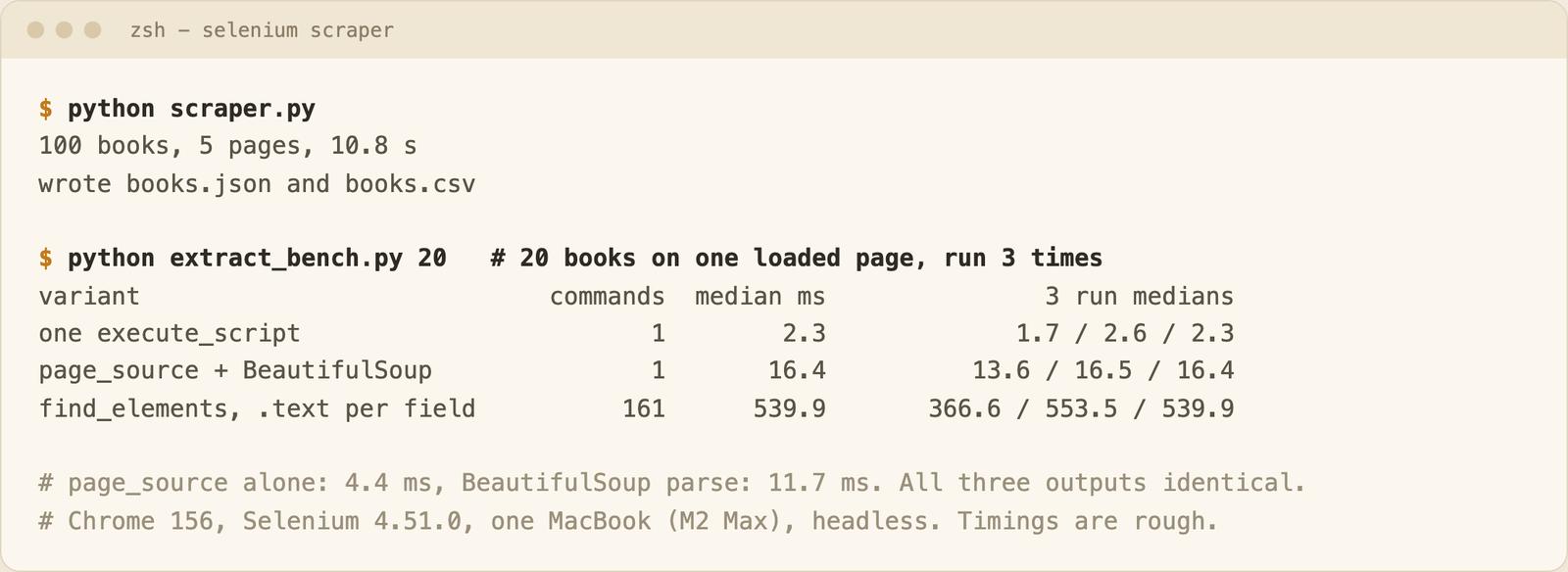
Run end to end, it produced 100 books in 5 pages in 10.8 seconds, including startup and four 1-second sleeps. The terminal below also shows the next section's benchmark.
Where the Time Goes: Extraction Speed
Every .text or get_attribute call is a separate round trip to chromedriver. A page of 20 books with 4 fields is a lot of calls. I loaded one books page once and ran three extraction styles 20 times each on it, three separate times:
| Style | WebDriver commands | Median time (3 runs) |
|---|---|---|
| find_elements, .text per field | 161 | 540 ms (367 to 554) |
| page_source parsed with BeautifulSoup (lxml) | 1 | 16.4 ms (13.6 to 16.5) |
| One execute_script returning the list | 1 | 2.3 ms (1.7 to 2.6) |
All three returned identical data. The page_source row is about 4.4 ms to fetch the HTML and 11.7 ms to parse it. The per-element style was around 30x slower than page_source and over 200x slower than one script. The first of the three runs was faster than the other two (367 ms against 540 and 554), so my machine's noise was bigger than any gap between those two. The order of the styles never changed.
In practice: use find_element to wait for and click things, then read data in bulk. If you prefer BeautifulSoup, driver.page_source gets you there with one call and a familiar API. It costs an extra install. One execute_script is the fastest, but JavaScript inside a Python string is harder to read and test. This was one page on one laptop, and on a real site the network time will still be larger than all of it.
Common Selenium Errors and Fixes
I provoked these on a local HTML file, so they cost no public requests. The messages are copied from the runs (stack traces removed; port, session id and style attributes shortened):
| Error | Real message | Cause | Fix | Reproduced |
|---|---|---|---|---|
| NoSuchElementException | no such element: Unable to locate element: {"method":"css selector","selector":"div.missing"} | Typo, or the element is not rendered yet | Check the selector, then add an explicit wait | Yes |
| StaleElementReferenceException | stale element reference: stale element not found in the current frame | The page re-rendered after you found the element | Find it again after the change | Yes |
| TimeoutException | Empty message | The wait condition never became true | Check the selector and the condition. Print driver.current_url and save a screenshot | Yes |
| ElementClickInterceptedException | element click intercepted: Element <button id="covered" ...>...</button> is not clickable at point (108, 116). Other element would receive the click: <div id="overlay" ...>...</div> | An overlay or banner sits on top | Close the overlay, scroll, or set a bigger window | Yes |
| ElementNotInteractableException | element not interactable | The element is hidden (display: none) | Wait until it is visible, or find the right element | Yes |
| MaxRetryError (urllib3) | HTTPConnectionPool(host='localhost', port=PORT): Max retries exceeded with url: /session/SESSION_ID/title ... | The driver was used after quit() | Create a new driver. I expected InvalidSessionIdException and did not get it | Yes |
| SessionNotCreatedException | session not created: This version of ChromeDriver only supports Chrome version 113 | Driver and Chrome major versions differ | Let Selenium Manager handle the driver | No, from the Selenium docs |
The empty TimeoutException message is the annoying one. Without a screenshot or a URL printout you only know a wait expired.
I confirmed the first two fixes worked: finding the element again returned the new row, and the click went through once the overlay was removed. The real ElementClickInterceptedException I met during the login run is in the window size note earlier.
When Not to Run Selenium Yourself
Selenium suits a script you control: a login, a form, a few hundred pages. It gets heavy as the job grows. You own the Chrome install and the driver. You also own retries, timeouts, a browser process per worker, and the cleanup when one crashes. Selenium does nothing about bot detection either. My rule for Selenium scraping in Python: Selenium when you need clicks and logins in Python, an HTTP client when the data is in the HTML, and an API when you only need page content.
That last case is where I would stop. My first script printed a page title, a link count and the page text. For an AI knowledge base that is often all you need, and it is what the WebCrawlerAPI scrape endpoint returns: page_title, links and markdown, from one POST request to https://api.webcrawlerapi.com/v2/scrape. There are no drivers to keep in sync. The scrape endpoint docs list the options: output_formats (markdown, cleaned, html, links), respect_robots_txt, and async=true to get a job id back instead of waiting. I have not run this snippet. It is adapted from the curl example in the docs:
import requests

resp = requests.post(
    "https://api.webcrawlerapi.com/v2/scrape",
    headers={"Authorization": "Bearer YOUR_API_KEY"},
    json={"url": "https://books.toscrape.com/", "output_formats": ["markdown", "links"]},
)
data = resp.json()
print(data["page_title"], len(data["links"]))
The public docs list no click or login options for scrape, so the login flow from this post still needs your own browser automation. See the web scraping API page for the product side. If your scripts will be driven by an AI agent instead, start with Playwright MCP.
If a page answers with 403 Forbidden, the fix is usually not more Selenium. If your IP is the problem, see proxies for web scraping.
What I Ran
My whole run made 49 counted page loads and XHR calls, with a cap of 60. That includes 2 robots.txt fetches, a failed login run, an earlier scraper run that clicked once too often, and the three benchmark runs (counted by hand, one load each). I counted Chrome's Document, XHR and Fetch requests from its performance log. Images and CSS were not counted.
FAQ
Is Selenium outdated?
No. Version 4.51.0 installed and drove Chrome 156 without a manual driver. Selenium is still a normal choice if you have a suite or scripts already. For a new scraper I would pick Playwright, as I explain in Playwright vs Selenium.
Can Selenium scrape JavaScript-rendered pages?
Yes, that is its main use. The browser runs the JavaScript. You then have to wait for the content, as with the /js quotes page above, instead of reading the page right after get().
Is web scraping with Selenium in Python legal?
The tool does not decide that. The site and the data do. Check robots.txt and the terms of service, avoid personal data, and keep your request rate low. I only scraped two sandboxes built for practice. I am not a lawyer; the glossary entry on whether web scraping is legal covers the basics.