To turn HTML or a URL into a PDF, load the page in headless Chromium and call page.pdf(). Playwright PDF and Puppeteer PDF generation use the same method name and nearly the same options. Set printBackground: true, give the page a paper size and margins, and wait until the content is really there before printing.
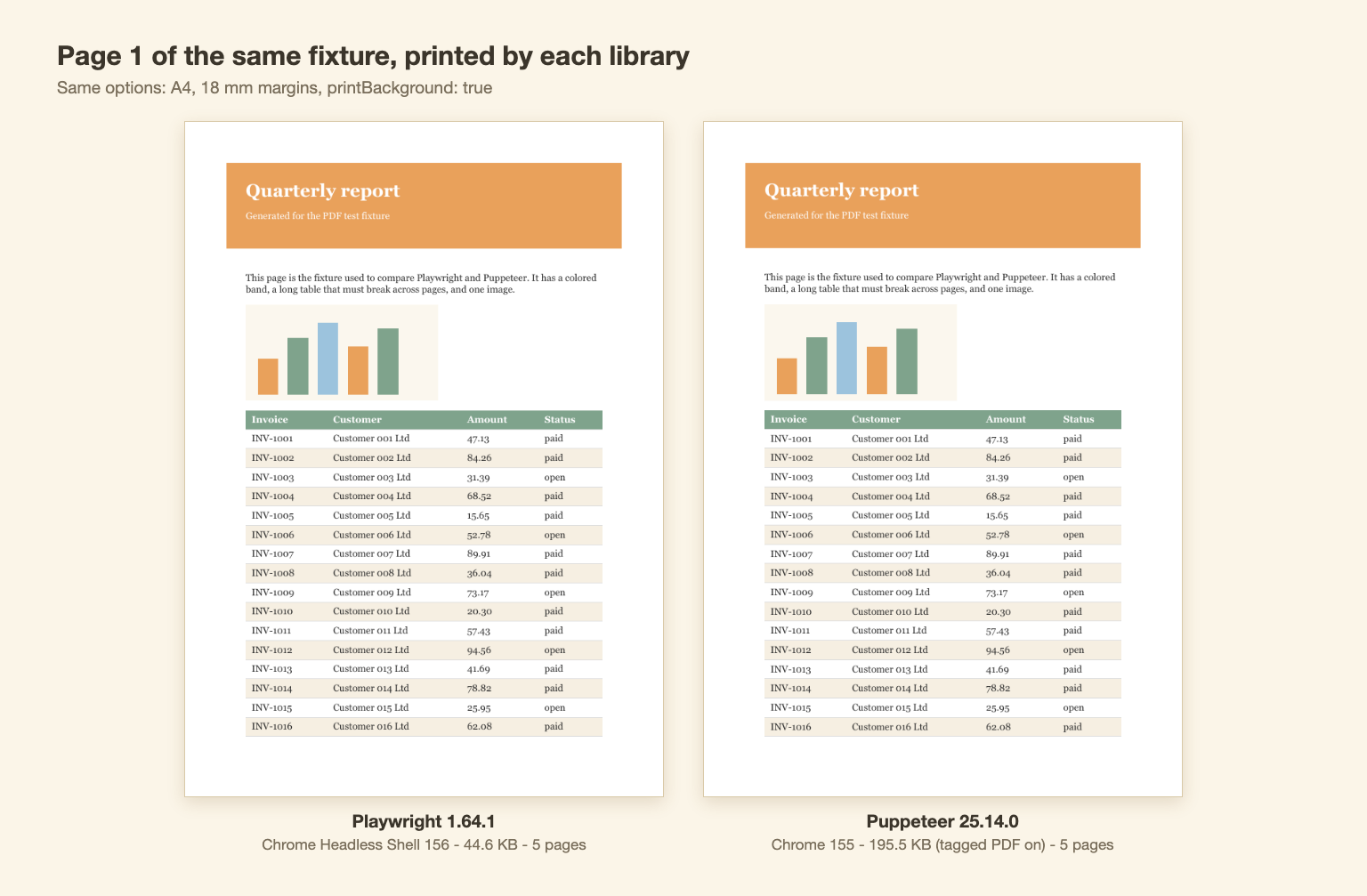
I ran the same report page through both libraries. The output looked the same. Two things differed: Puppeteer's PDF was 4.4x larger (195.5 KB against 44.6 KB), and the cause was a default setting, not the library.
Last updated: October 25, 2026. I run WebCrawlerAPI. All numbers come from my runs on one MacBook (M2 Max) with Node 26.12.1, Python 3.11.2, Playwright 1.64.1 and Puppeteer 25.14.0.
Playwright PDF in Node
This is the whole script, HTML to PDF in JavaScript on Node 18+. It loads a URL, prints it to A4 with margins, and keeps the background colors:
import { chromium } from "playwright";

const browser = await chromium.launch(); // headless by default
const page = await browser.newPage();
await page.goto("http://127.0.0.1:8123/report.html", { waitUntil: "load" });

await page.pdf({
  path: "out/playwright-node.pdf",
  format: "A4",
  margin: { top: "18mm", right: "18mm", bottom: "18mm", left: "18mm" },
  printBackground: true, // default is false
});

await browser.close();
I ran this against a local fixture: a colored header band, an image and a 110-row table. It produced a 5-page A4 PDF of 44.6 KB with 715 words of selectable text (checked with pdftotext).
To print an HTML string instead of a URL, swap goto for setContent. There is one trap: setContent has no base URL. In my fixture the relative <img src="chart.svg"> loaded fine through goto and was a broken image through setContent, in both libraries. Use absolute URLs, inline the asset, or serve the HTML.
page.pdf() needs a headless browser. If the term is new, read what a headless browser is. For general Playwright scraping see web scraping with Playwright. If you only want screenshots, best screenshot APIs covers that.
HTML to PDF in Python with Playwright
To convert HTML to PDF in Python, use the same call with snake_case names:
from playwright.sync_api import sync_playwright

with sync_playwright() as p:
    browser = p.chromium.launch()
    page = browser.new_page()
    page.goto("http://127.0.0.1:8123/report.html", wait_until="load")
    page.pdf(
        path="out/playwright-py.pdf",
        format="A4",
        margin={"top": "18mm", "right": "18mm", "bottom": "18mm", "left": "18mm"},
        print_background=True,  # printBackground in Node
    )
    browser.close()
The names that change are print_background, prefer_css_page_size, display_header_footer, header_template, footer_template and page_ranges. I checked them in the Python API docs. The output had the same size as the Node file (45,710 bytes, 5 pages). The docs also show an async variant with await; I only ran the sync one.
Puppeteer PDF in Node
import puppeteer from "puppeteer";

const browser = await puppeteer.launch();
const page = await browser.newPage();
await page.goto("http://127.0.0.1:8123/report.html", { waitUntil: "load" });

await page.pdf({
  path: "out/puppeteer.pdf",
  format: "A4",
  margin: { top: "18mm", right: "18mm", bottom: "18mm", left: "18mm" },
  printBackground: true,
});

await browser.close();
Three differences I ran into:
- Browser build. puppeteer.launch() started full Chrome 155. Playwright started Chrome Headless Shell 156. Puppeteer can use the shell too with headless: "shell".
- Tagged PDF. In the installed type definitions tagged defaults to true (marked experimental). The Playwright docs say false. Tagged PDFs carry accessibility structure, and that is where the size goes.
- Font wait. Puppeteer's waitForFonts option defaults to true, and its PDF guide says page.pdf() waits for fonts. Playwright's docs do not say that.
For a broader choice between the two, see Puppeteer vs Playwright. This post stays on PDF output.
page.pdf Options That Matter
Defaults below come from the Playwright docs fetched on October 25, 2026, and from Puppeteer's 25.14.0 type definitions.
| Option | What it does | Playwright default | Puppeteer default |
|---|---|---|---|
| format | Paper size (A4, Letter...). Wins over width/height | Letter | letter |
| margin | top/right/bottom/left, units like 18mm | 0 | none |
| printBackground | Print background colors and images | false | false |
| displayHeaderFooter | Draw header and footer templates | false | false |
| preferCSSPageSize | Let CSS @page size win over format | false | false |
| pageRanges | For example "1-3, 5" | all pages | all pages |
| scale | 0.1 to 2 | 1 | 1 |
| landscape | Rotate the page | false | false |
| tagged | Accessible (tagged) PDF | false | true |
| outline | Embed the document outline | false | false |
Playwright lists tagged and outline as added in 1.42.
Headers and footers need three things: displayHeaderFooter: true, a template, and margins big enough to hold them. The templates do not see your page CSS, so set font-size inline. Both libraries support the classes date, title, url, pageNumber and totalPages:
await page.pdf({
  path: "out/options-demo.pdf",
  format: "A4",
  printBackground: true,
  displayHeaderFooter: true,
  headerTemplate: `<div style="font-size:9px;width:100%;padding:0 18mm;color:#7a7a7a;">
    <span class="title"></span></div>`,
  footerTemplate: `<div style="font-size:9px;width:100%;text-align:right;padding:0 18mm;color:#7a7a7a;">
    Page <span class="pageNumber"></span> of <span class="totalPages"></span></div>`,
  margin: { top: "24mm", right: "18mm", bottom: "24mm", left: "18mm" },
});
I ran this with the same header and footer through both libraries. The text "Page 1 of 1" came out in the PDF text layer. Both libraries also printed a date, the title and the URL when displayHeaderFooter was on and I passed no templates, so that default can surprise you.
One more behavior from the docs, and I confirmed it: page.pdf() uses print CSS by default. My fixture hides a navigation bar with @media print. The default PDF had no navigation text. After page.emulateMedia({ media: "screen" }) in Playwright, or page.emulateMediaType("screen") in Puppeteer, the text came back.
Waiting Before You Print
page.pdf() prints what exists at the moment of the call. It does not wait for your JavaScript.
I built a page that fills its content 1.5 seconds after load. Printing right after goto produced a PDF that said "Loading..." and nothing else. Printing after await page.waitForSelector("#ready") contained the real text. Both libraries behaved the same.
So wait for a thing you can name: a selector, a response, a flag your app sets. networkidle is tempting, but it has its own problems, covered in how to fix Playwright networkidle misuse.
Fonts were easier than I expected. I served a web font with a 1,500 ms delay and printed right after load, after domcontentloaded, and after document.fonts.ready. The font, an icon font, was embedded in all six PDFs (checked with pdffonts). Puppeteer waits for fonts by default anyway, so only the Playwright result tells you something. I could not reproduce a missing font this way. I still call await page.evaluate(() => document.fonts.ready) before printing, because it costs nothing.
Lazy images are the real one. A loading="lazy" image far below the fold printed in Playwright's PDF but not in Puppeteer's (0 pixels of the chart color against 845). The two ran different builds (Chrome 155 against Headless Shell 156), so I cannot blame the library. Forcing loading = "eager" and awaiting img.decode() fixed it in both.
Common Problems and Fixes
| Symptom | Cause | Fix | Verified |
|---|---|---|---|
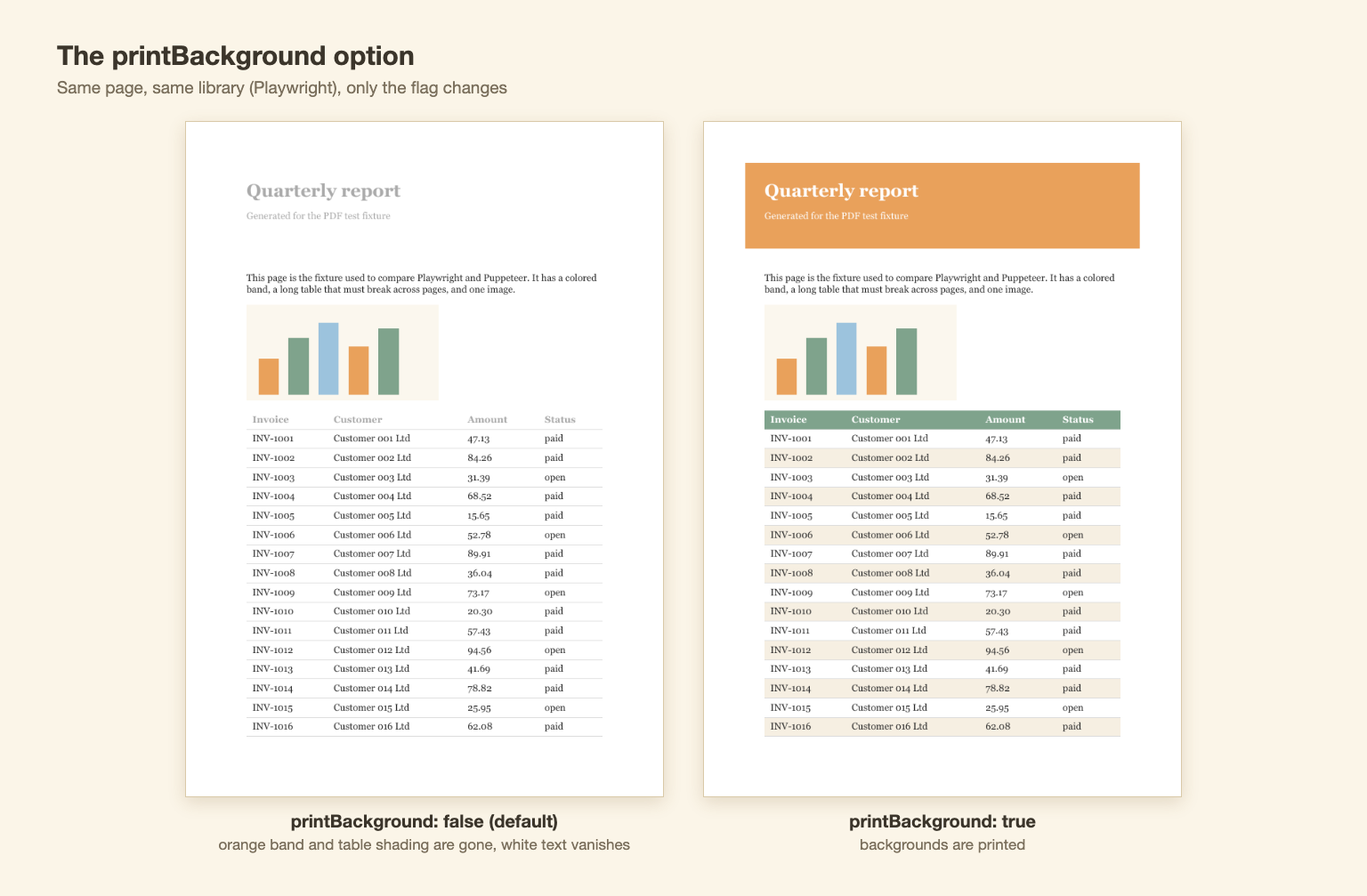
| Colors and shading missing | printBackground defaults to false | Set printBackground: true | Yes, both libraries |
| PDF shows "Loading..." or is blank | Printed before the JS finished | Wait for a selector, then print | Yes, both libraries |
| Relative images broken | setContent has no base URL | goto a URL, or use absolute URLs | Yes, both libraries |
| Lazy image missing | Image never loaded before printing | Set loading = "eager", await decode() | Yes, seen in Puppeteer only |
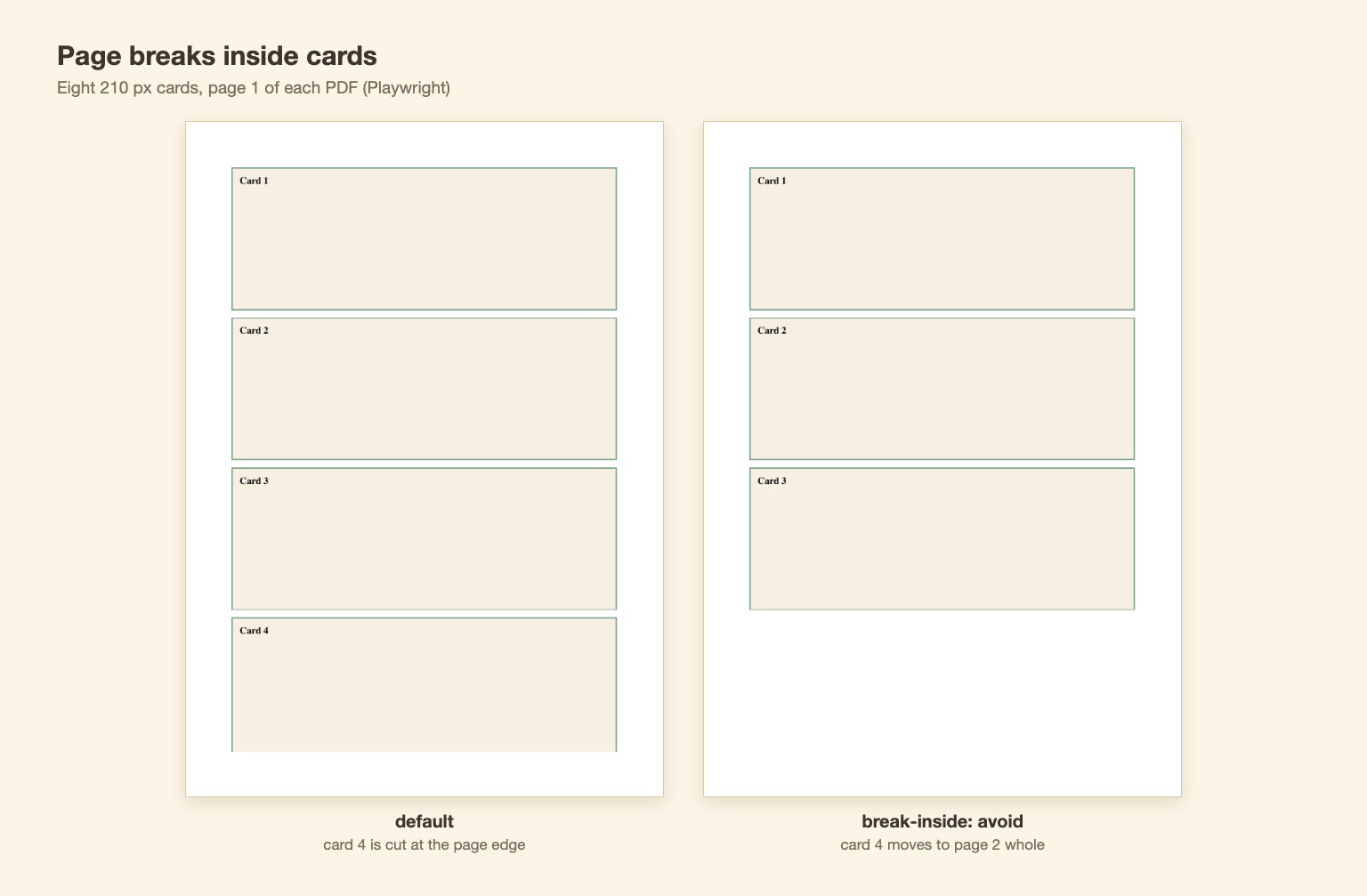
| Card or row cut at a page edge | Browser breaks anywhere by default | break-inside: avoid on the block | Yes, checked visually in Playwright |
| Header or footer not shown | Template needs margin and an inline font size | Set margin and font-size | Not reproduced. They rendered at margin 0 in my run; give them margin anyway so they do not sit on content |
| Wrong or missing fonts | Font absent on the server | Install fonts; see missing OS fonts | Not run (no Linux or Docker) |
| Web font not loaded | Printed before it arrived | await document.fonts.ready | Not reproduced, see above |
| PDF is 4x bigger than expected | Puppeteer's tagged default | tagged: false | Yes |
Playwright vs Puppeteer: What I Measured
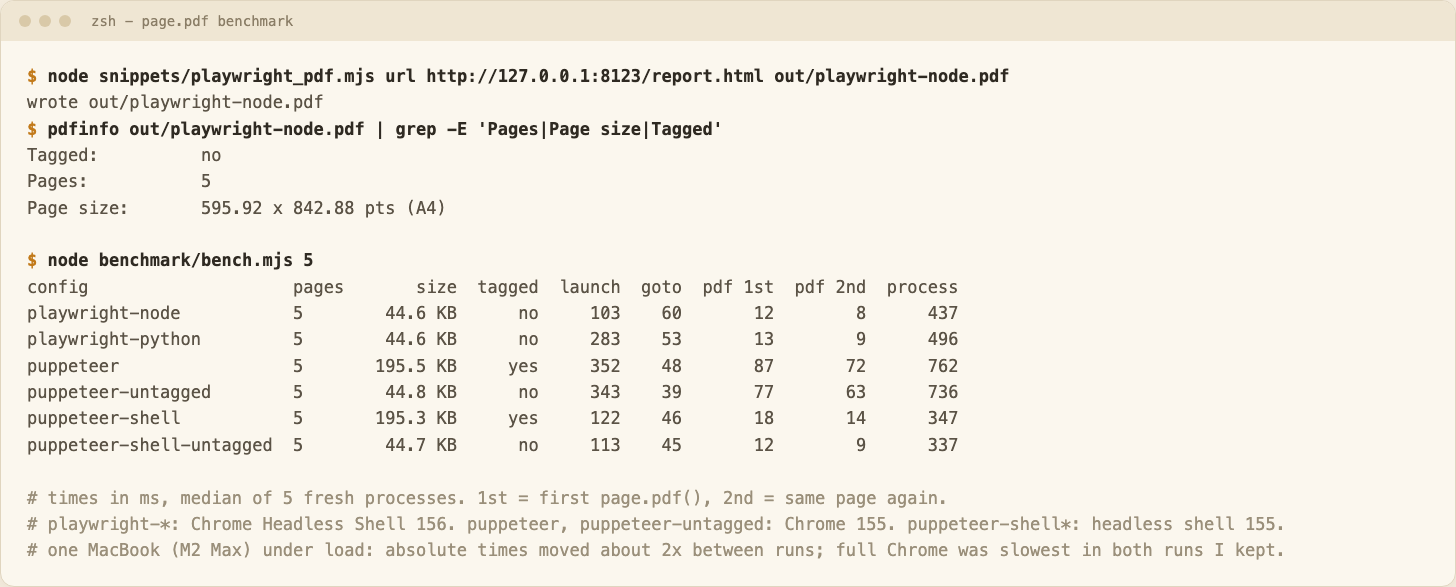
Same fixture, same options, same machine. Each config ran five times in fresh processes, interleaved, and I report medians. "1st" is the first page.pdf() after a cold launch, "2nd" is the same page printed again in the same browser.
| Config | Browser | Size | 1st pdf | 2nd pdf | Whole process |
|---|---|---|---|---|---|
| Playwright Node | Headless Shell 156 | 44.6 KB | 12 ms | 8 ms | 437 ms |
| Playwright Python | Headless Shell 156 | 44.6 KB | 13 ms | 9 ms | 496 ms |
| Puppeteer (default) | Chrome 155 | 195.5 KB | 87 ms | 72 ms | 762 ms |
| Puppeteer, tagged: false | Chrome 155 | 44.8 KB | 77 ms | 63 ms | 736 ms |
| Puppeteer, headless: "shell" | Headless Shell 155 | 195.3 KB | 18 ms | 14 ms | 347 ms |
| Puppeteer, shell, tagged: false | Headless Shell 155 | 44.7 KB | 12 ms | 9 ms | 337 ms |
What this says, and what it does not:
- The browser build decides speed, not the library. Full Chrome was the slowest in both runs I kept (a first run, with four configs, was overwritten and showed the same order). Puppeteer on the headless shell was in the same range as Playwright. Which of those two was faster flipped between runs.
- Treat the milliseconds as rough. The machine was busy, and absolute times moved about 2x between my runs. All six outputs had 5 pages and the same 715 selectable words.
- File size is a setting. Tagged output made files about 4.4x larger. Turning it off made Puppeteer match Playwright's size. If you need accessible PDFs, keep it on.
One public page, example.com, was printed once per library with an identifying user agent and a request cap. robots.txt returned 404, so there were no rules. Playwright's PDF was 189,412 bytes and Puppeteer's (headless shell) 162,797, 1 page each. One load per library is not a benchmark. I also ran a quotes.toscrape.com test and dropped it because I did not keep its raw outputs. In total I made about 18 public requests, counting two robots.txt checks and that dropped run.
What I did not run: Firefox, WebKit, Windows, Linux, Docker, and any WebCrawlerAPI call. pptr.dev's API pages did not load for me, so Puppeteer option defaults come from the type definitions of the installed 25.14.0 package.
My rule: Playwright if you use Python or several languages, Puppeteer if you are Node-only and already have it. The PDF difference is small.
HTML to PDF API: When It Beats Running the Browser
If you print a few reports a day, the scripts above are enough. If you print thousands, you now run Chromium, and that means memory per job and crashed browsers, plus missing fonts in containers. Managed cloud browser vs self-hosted Puppeteer covers the cost side in more detail.
At that point a hosted HTML-to-PDF API can be cheaper than your own time. I have not tested any, so I am not ranking vendors. WebCrawlerAPI is not one of them: it does not produce PDFs.
Saving Pages for an AI Knowledge Base: PDF or Markdown?
Some readers want to save web pages for an AI knowledge base or a support bot. WebCrawlerAPI does not generate PDFs. Its scrape endpoint returns markdown, HTML or structured data.
A PDF of a web page is a print layout. It has fixed pages, headers and footers, and to use the text you have to extract it again. For feeding page content into an AI knowledge base, I think markdown is the better format. That is my opinion, and it applies when you control the source: if you can fetch the page, fetch the page, not a PDF of it. If PDF files are the real source, that is a different problem, and this post does not cover it.
Use a PDF when a person needs a printable or archival copy. To get markdown from a URL, see the scrape docs or the web scraping API. If your agents drive a browser themselves, see Playwright MCP.
FAQ
Does Playwright support PDF in Firefox or WebKit?
I only ran Chromium, so I cannot say. The page.pdf() docs I read on October 25, 2026 do not list browser limits. Test your target browser before relying on it.
Can I generate a PDF from a URL instead of HTML?
Yes. Use goto(url) then pdf(). Use setContent only for an HTML string, and remember it has no base URL for relative assets.
How do I add page numbers and headers?
Set displayHeaderFooter: true, write a headerTemplate or footerTemplate with the classes pageNumber, totalPages, date, title or url, and set margins and an inline font size. See the options section above.
How do I test or parse a downloaded PDF in Playwright?
That is a different task: use a PDF library on the downloaded file. Playwright only drives the browser. I used poppler's pdftotext for checks here.
Is there an HTML to PDF API?
Yes, several vendors sell one, and I have not tested them. WebCrawlerAPI is not one: it returns markdown, HTML or structured data.
Conclusion
Use Playwright for Python or mixed stacks and Puppeteer for Node-only code. If you do not want to run Chromium, buy a PDF-rendering API. For an AI knowledge base, keep the markdown.